ARCHIBUS Web Central V2022.02 What’s New

1. Overview
- BIM Viewer
- SpaceConsole
- Division and Department names
- Maintenance
- Maintenance Console: Improved Filters
- Checklists for PM Procedure Steps
- Reservations
- Teams and Zoom links (Part 1)
- Reservations Plugin for Microsoft Outlook Compatible with Room Calendars
- Hoteling
- Show Desk Bookings on Outlook and O365 Calendars
- Workplace Utilization Report
2. BIM Viewer
With the BIM Viewer, you can access and explore your asset inventory stored in Revit models right from a Navigator task.
Publish your asset data to the Archibus SaaS environment using the Archibus Smart Client Extension for Revit to produce an interactive “digital twin” BIM model of your buildings. Next, use the Archibus BIM Viewer to search for assets by name, type, classification, or standard, and visually pin point the locations of these assets.
With the BIM Viewer, you gain access to all assets that were established in BIM during the design and construction phase. With complete asset information at your fingertips, you can visualize system connections, plan maintenance activities before going to the site, and integrate other asset information, such as maintenance history and BMS-initiated diagnostics, into your procedures. The BIM Viewer also has features for exporting the data to PDF or Excel, so that you can share this information with others.
The BIM Viewer requires the Archibus Digital Twins license and is available as a Navigator task in the Assets and Maintenance domains.


3. Space Console
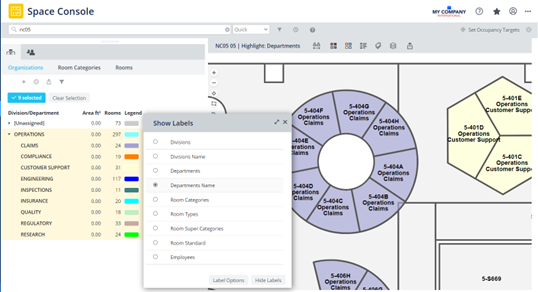
The Space Console now can display the Division and Department Name in addition to the Codes. From the Show Labels option, you can choose the Division Name and Department Name fields and display these descriptive labels with mixed case on the floor plan when you highlight.
4. Maintenance
Maintenance Console: Improved Filters
Quick Filter
For quickly entering a common filter, use the Quick Filter button to access a list of commonly used filters, as well as filters that you recently accessed.

Smart Filter
Sometimes you know the exact details of a request — such as the exact work request number, equipment ID or room– and you do not need to call up a filter form and select the item from a list. In these cases, you can enter the values in the Smart Filter box. As you type the characters, the filter builds a list of matching values from which you can select the desired work request.

Advanced Filter
Use the Advanced filter to filter all the requests based on multiple criteria. Clicking the Filters button opens a side panel of filter selections, grouped in sections. Expand a section to enter filter criteria, and then open another section to specify additional criteria. Each section gives a count of the criteria that you specified.

5. Reservations
Teams & Zoom Links
Companies that integrate Exchange with Archibus can now see links for Zoom and Teams meetings in the Reservations Calendar Console. When you create a meeting from Exchange and attach a Teams or Zoom meeting link there, the Archibus Reservations Calendar Console now includes these links as part of the reservation’s comments. From the Reservations Calendar Console, you can see the Zoom and Teams links on the My Reservations tab (shown below), as well as the Room Reservation Details screen, accessed when editing a reservation.

Reservations Plugin Compatible with Room Calendars
In V.2022.02, support for room mailboxes to the Reservations Plugin has been added.
6. Hotelling
Show Bookings on Outlook or O365 Calendars
Employees who book desks before coming into the office may wish the booking to display on their Outlook or O365 calendar. When they open Outlook in the morning, they can see the booking and will know which desk to occupy.
ICS files are supported in email confirmations for booked seats. When the requestor receives their email confirmation for the booking, the email has an attached ICS file (a calendar file saved in a universal calendar format) that they can import into Outlook and O365. They can then respond to the invitation in Outlook and their calendars will display the location, date, and time of the booking.
The ICS file can be generated for all bookings, regardless of whether they are made from Workplace or the Create Booking task.
Workplace Utilization Report
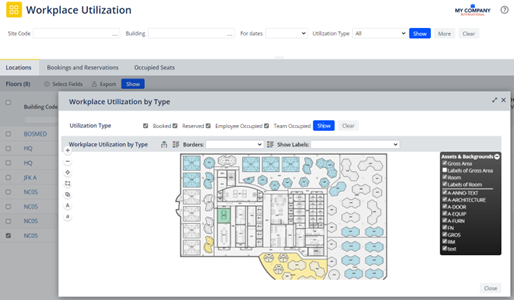
V.2022.02 now includes occupied permanent rooms on the Bookings and Reservations report, so that you can fully assess how a floor is utilised. In this report, you can see the utilization of meeting spaces, permanently occupied working spaces, and hoteled working spaces.
The report has these changes:
- The report has been renamed to “Workplace Utilization.”
- The report now includes the Occupied Seats tab so that you can see which seats are permanently allocated to employees.
- When you access the floor plan, it highlights utilized rooms (reserved, booked, and permanently occupied) according to your restriction. You can then use the Workplace Utilization by Type check boxes to highlight by each type of use in turn.